Defining data map extensions for a process
Add or edit data map extensions in the Extensions dialog.
Procedure
-
Open the process and click the Extensions link above the process canvas.
The Extensions dialog opens.
-
Select the Data Maps tab.
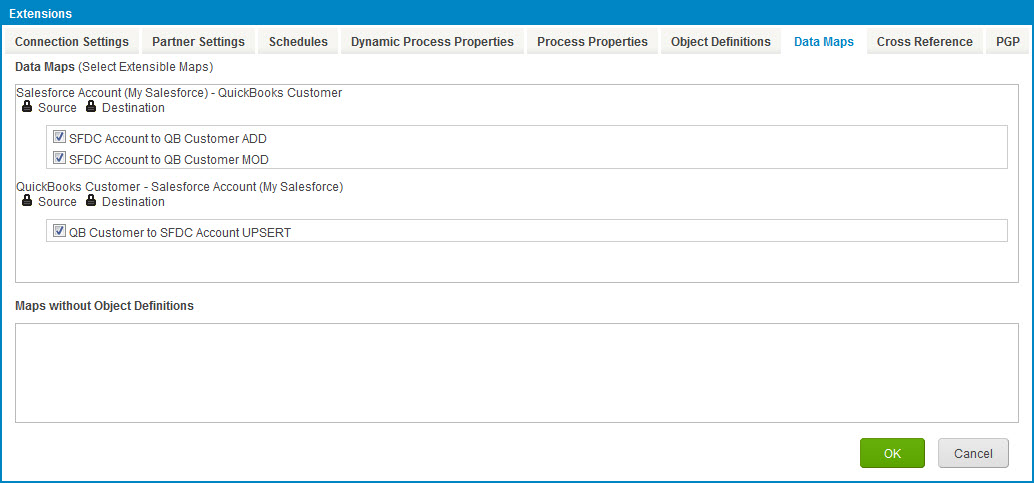
Source and destination object definitions are listed in pairs. A list of the map components that reference profiles specified in those object definitions are grouped below each object pair.
-
For the first object pair, lock fields in the source profile to prevent them from being customized:
- Click
 Choose Locked Fields for Source Profile.
The Locked Fields dialog opens.
-
For each field you want to lock, select the check box adjacent to the element name.
-
When you are done locking fields, click OK.
The Locked Fields dialog closes, and focus returns to the Data Maps tab.
- Click
-
For the first object pair, lock fields in the destination profile to prevent them from being customized. Click
Choose Locked Fields for Destination Profile, and select the fields in the Locked Fields dialog as in step 3. -
For the first object pair, select the check box for each data map you would like to extend.
-
Repeat steps 3–5 for each additional object pair.
-
When you are finished defining extensions, click OK.
-
Click Save.
Next steps
After defining data map extensions, you need to set values for them. See the topic Setting Extension Values linked below.
